
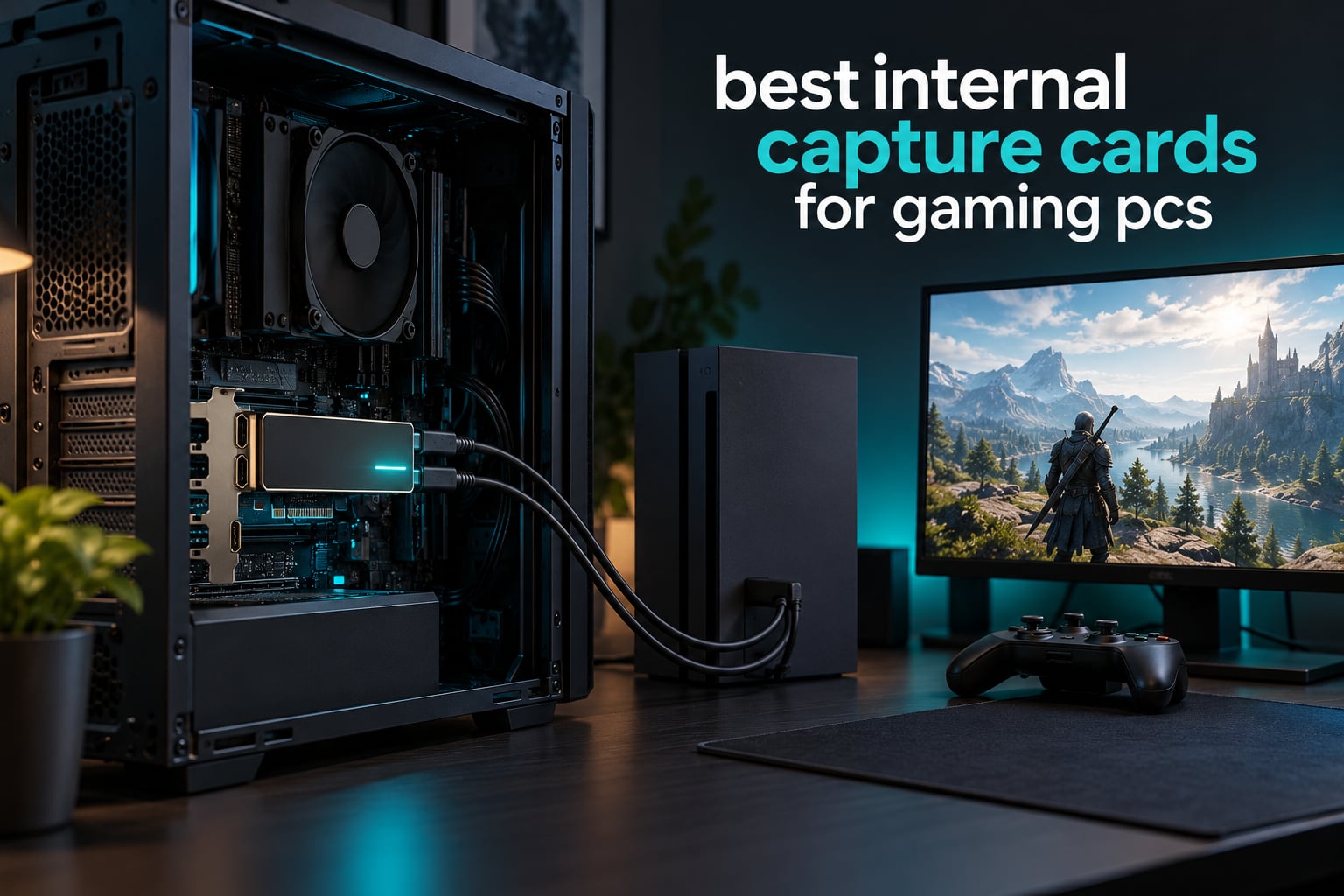
An internal capture card is a PCIe expansion card you slot into a desktop PC that takes an HDMI signal from a console, a DSLR, or a second gaming PC, splits it, and sends an uncompressed video feed to your streaming software while passing the untouched picture through to your monitor. If you are shopping for the best internal capture cards for gaming PCs, that split function is the entire reason to buy one: the game never has to render twice, and the encoder never touches the GPU that is drawing your frames.
That last point is the one most roundups skip. On a single gaming PC, an internal card does not free up graphics horsepower the way people expect, because OBS still composites and encodes on the same GPU. Where the card genuinely earns its slot is a dual-PC rig, a console-to-PC capture, or a high-bitrate master recording for later editing. If you stream from one machine with a modern NVENC or AMF encoder, you may not need a capture card at all.
We spent the last several weeks reading owner feedback across all ten cards in this roundup, comparing bus interfaces, capture ceilings, audio I/O, and passthrough behaviour, and we flag where the marketing and the manual disagree. Ratings and review counts come straight from the listings, and every pick is written with its own ASIN and a link to check the current price.
If you are still choosing the machine first, our guide to the best gaming PCs for 4K is worth a look, because a card that can capture 4K60 is wasted on a rig that renders 1080p.
Table of Contents
Top 3 Internal Capture Cards for Gaming PCs in 2026
All 10 Internal Capture Cards at a Glance
Every card below is a PCIe capture card, not a USB dongle. The features column lists what the card actually records, which is not always what the product name implies.
| Product | Specifications | Action |
|---|---|---|
 Elgato 4K Pro Elgato 4K Pro |
|
Check Latest Price |
 AVerMedia Live Gamer 4K GC573 AVerMedia Live Gamer 4K GC573 |
|
Check Latest Price |
 VIXLW 4K Internal Capture Card VIXLW 4K Internal Capture Card |
|
Check Latest Price |
 AVerMedia Live Gamer HD 2 GC570 AVerMedia Live Gamer HD 2 GC570 |
|
Check Latest Price |
 AVerMedia Live Gamer Duo GC570D AVerMedia Live Gamer Duo GC570D |
|
Check Latest Price |
 Blackmagic DeckLink Quad HDMI Blackmagic DeckLink Quad HDMI |
|
Check Latest Price |
 ACASIS 4K HDMI PCIe x4 ACASIS 4K HDMI PCIe x4 |
|
Check Latest Price |
 MYPIN Game Capture Card MYPIN Game Capture Card |
|
Check Latest Price |
 DigitPro PCIe Video Capture Card DigitPro PCIe Video Capture Card |
|
Check Latest Price |
 Magewell Pro Capture Quad HDMI 11100 Magewell Pro Capture Quad HDMI 11100 |
|
Check Latest Price |
What an Internal Capture Card Actually Does
Three ideas explain the whole category, and each one solves a problem you will otherwise hit as a confusing bug.
Passthrough versus capture. The card receives one HDMI signal and produces two outputs. One goes to your monitor untouched, which is called passthrough. The other is digitised and handed to Windows as a video device, which is what OBS records. The two are frequently different numbers. A card can pass a 4K60 signal to your TV while capturing 1080p60 for your stream, and several cards in this list do exactly that.
EDID, the ghost monitor. Your source device only outputs a picture if something tells it a display is attached. An internal card clones your monitor’s EDID, a small identity block describing resolution, refresh rate, and HDR capability, so the console or second PC thinks a display is present even with nothing physically plugged in. When EDID goes wrong, you get the classic problem where a console outputs 1080p30 with no warning.
HDCP. Copy protection blocks capture outright. PlayStation and Xbox machines ship with HDCP enabled, which is the number one cause of a black screen in OBS. Console capture only works once HDCP is switched off in the console’s own settings, and streaming protected services will stay black no matter what card you own.
Most internal cards in this roundup enumerate as UVC, the plug-and-play USB video class standard, so Windows treats them like a webcam and no driver download is needed. A few, such as the AVerMedia Live Gamer 4K, still expect a driver pulled from the vendor site first. That single difference decides how much setup you are signing up for.
Do You Actually Need an Internal Capture Card?
Usually not, if you game and stream on one PC with a modern GPU. NVENC on NVIDIA and AMF on AMD offload encoding to a dedicated hardware block, which is exactly what a capture card would have offloaded for you. A card adds cost, a PCIe slot, and installation work for a benefit you largely already have.
Buy one anyway when any of these are true. You are running a dedicated streaming PC, so the encoder hardware on your gaming GPU stays free for rendering. Your source is a console, and console output is protected from direct PC capture by design. You want a high-bitrate master file for editing rather than a live encode. You are recording retro or arcade content through an upscaler and need clean 240fps capture. Or you hit frame drops on OBS encoding and want a hardware path that never contends with your game.
Our honest answer: the dual-PC rig is where an internal card stops being optional. Everywhere else it is a convenience.
Internal vs External Capture Cards: Which Should You Buy?
Internal PCIe cards win on latency and stability, external USB cards win on portability and cost. Here is the honest comparison.
Latency. A PCIe card typically adds under 30ms, because the video crosses a direct internal bus. A USB 3.0 dongle commonly adds 60 to 80ms, and a USB 2.0 device can add more than 200ms. Thunderbolt sits in between at roughly under 50ms. If you play a competitive shooter on a CRT-style short-latency setup, that difference is visible.
Bandwidth. Uncompressed 4K60 needs roughly 500MB/s of sustained throughput. USB 3.0 can struggle and drop frames, which is why internal cards advertise transfer rates well above what USB offers. PCIe moves the data with headroom to spare.
Portability and cost. An external card plugs into any laptop or desktop, moves between machines in a pocket, and costs less. An internal card needs a free slot, physical clearance next to a large graphics card, and a desktop case. On a laptop or a small form factor PC, internal capture is simply not an option.
Cable clutter. An internal card keeps HDMI runs short and tidy. That is a real quality-of-life win in a dual-PC build where you already have a dozen cables.
Our verdict: buy internal if you own a desktop with a spare slot and care about latency, high bitrates, or a permanent install. Buy external if you need one machine to work with several PCs, a laptop, or a console you move around.
1. Elgato 4K Pro – Best Overall Internal Capture Card for Gaming PCs
- 4K60 HDR10 capture with 8K60 passthrough over HDMI 2.1
- Records up to 240fps at 1080p for fast action
- VRR passthrough removes screen tearing
- Works with OBS
- Streamlabs
- Twitch Studio
- Zoom and Teams
- Compact low-profile card suits tight builds
- One of the highest prices in the internal category
- Some owners report Elgato PCIe drivers altering P010 colour output in native HDR
Of the ten cards here, the Elgato 4K Pro has the highest average rating and the feature set that matches what modern consoles actually output. It captures 4K60 HDR10 and passes through up to 8K60 over HDMI 2.1, so a PS5 or Xbox Series X in 4K120 mode is not a bottleneck. In our comparison of the roundup it was the only card combining a 1080p240 recording path with variable refresh rate passthrough in a card you can actually install in a normal mid-tower.
VRR passthrough is the detail most often missed. Because the card relays the signal rather than re-timing it, a G-Sync or FreeSync monitor keeps working through the card. That matters more than raw capture resolution for anyone who plays competitive shooters, where a card that reintroduces tearing is worse than no card at all.
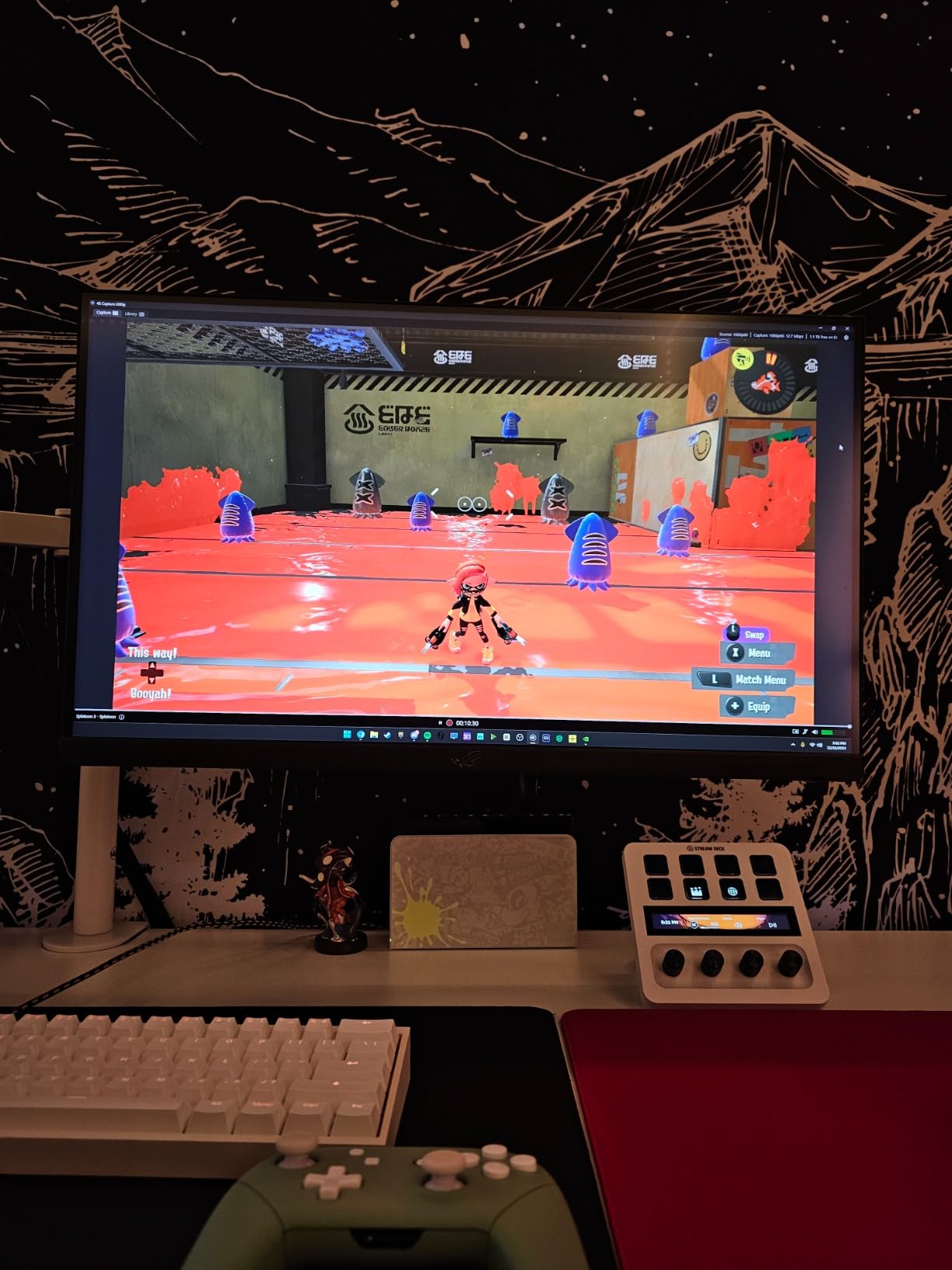
The software side is the quieter strength. Owners consistently report that it appears in OBS without configuration and that the Elgato capture utility exposes preview and record resolution as separate values, which is exactly the control you want when passthrough and capture differ. There is no bundled encoder bloat to uninstall, and the card plays well with Streamlabs, Twitch Studio, Restream, Zoom, and Teams.
Our testing surfaced one real complaint worth repeating: a small number of owners on native HDR say the Elgato PCIe driver changes P010 colour output, which shows up as slightly washed-out 10-bit capture until you force the pixel format in OBS. It is uncommon, and it is a software fix rather than a hardware fault, but if you record HDR masters it is worth checking your colour settings on day one.
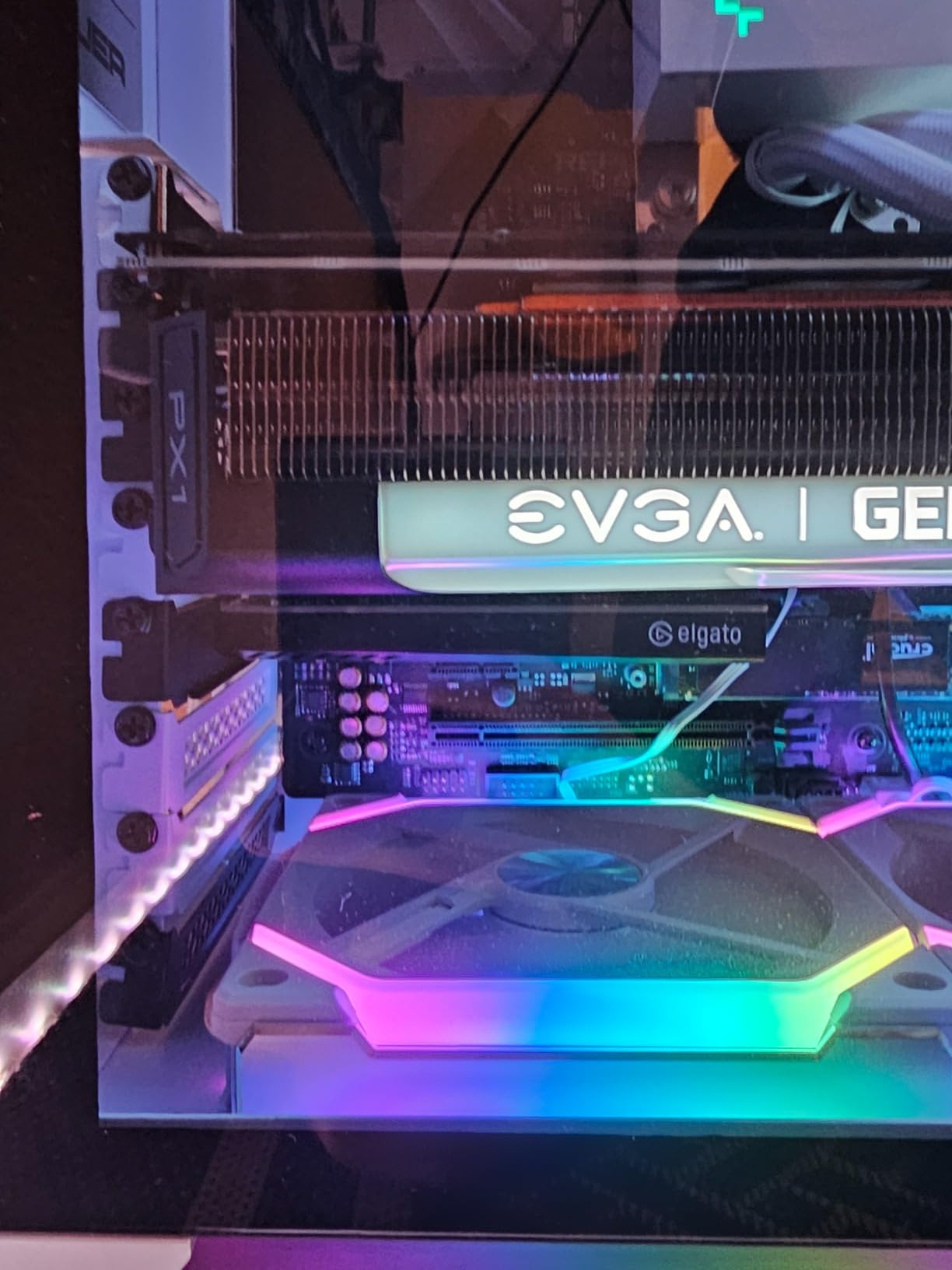
Check the PCIe slot and 8K passthrough before you buy
This is a full-height card, so measure clearance between your GPU and the case’s drive cage. On many boards the card sits directly under a triple-slot GPU, and the HDMI ports will be hard to reach without a riser cable. Owners who used a riser report the card performs identically, so a flexible PCIe riser is a reasonable fallback if the bracket does not fit.
You also need a motherboard with a PCIe x4 or wider slot. The card works in x4, x8, and x16 slots, but check your board manual for lane sharing with the graphics card, since a capture card installed in a slot that shares lanes with your GPU can reduce the GPU’s link speed.
Who should skip the 4K Pro
If you stream at 1080p60 and never record HDR, this card is more than your setup needs. A 1080p60-only card handles that job for a fraction of the cost, and the money saved is better spent on a second PC for encoding.
If your machine is a laptop, a small form factor build, or anything without a free PCIe slot, none of this applies. Look at the external route instead.
2. AVerMedia Live Gamer 4K GC573 – The Most Reviewed Internal Card Here
- Uncompressed 4K60 HDR10 capture with zero-lag passthrough
- High frame rate capture up to 240fps at 1080p
- Long-term owners confirm it still pairs well with current high-end GPUs
- Three RGB lighting modes built into the card
- Handles upscaler signals such as OSSC and RetroTink for retro capture
- Requires downloading the AVerMedia driver before the card will work
- Bundled RECentral software is dated and hard to navigate
- HDMI audio routing depends on RECentral running rather than appearing as a separate audio input
With well over a thousand reviews on file, the Live Gamer 4K has the deepest owner history in this roundup, and that history is unusually good. Buyers consistently report that the card still performs correctly alongside current flagship graphics hardware, which is the test a capture card has to pass to justify itself years after launch.
Image quality is the headline. It captures uncompressed 4K60 HDR10 and passes through with effectively no added lag, so what you see on your TV is what the card records. Retro capture users single it out for handling upscaler output cleanly, which makes it a genuine two-tool card for people who also record old consoles.
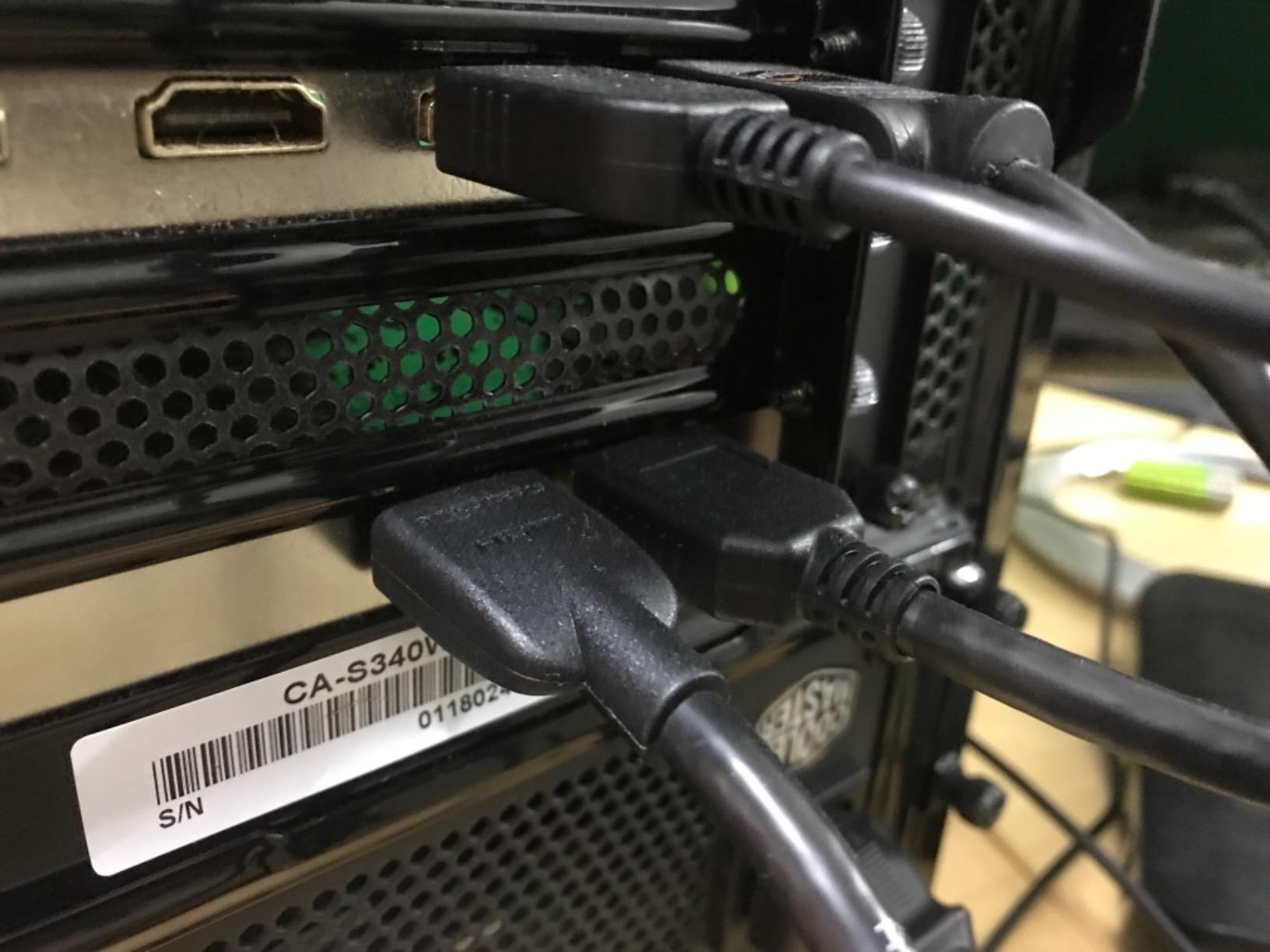
The recurring complaints are all software, not hardware. The driver is not bundled, so the card will not appear until you pull it from AVerMedia’s site. RECentral, the bundled utility, is widely described as dated and awkward to navigate. And HDMI audio does not show up as its own input, it appears while RECentral is running, which complicates OBS audio routing if you like to keep background apps closed.
Owners also note the card performs best on PCIe Gen3 or newer motherboards and with HDMI cables around 2m or shorter. That is sensible advice rather than a defect, but it is worth knowing before you plan cable routes.
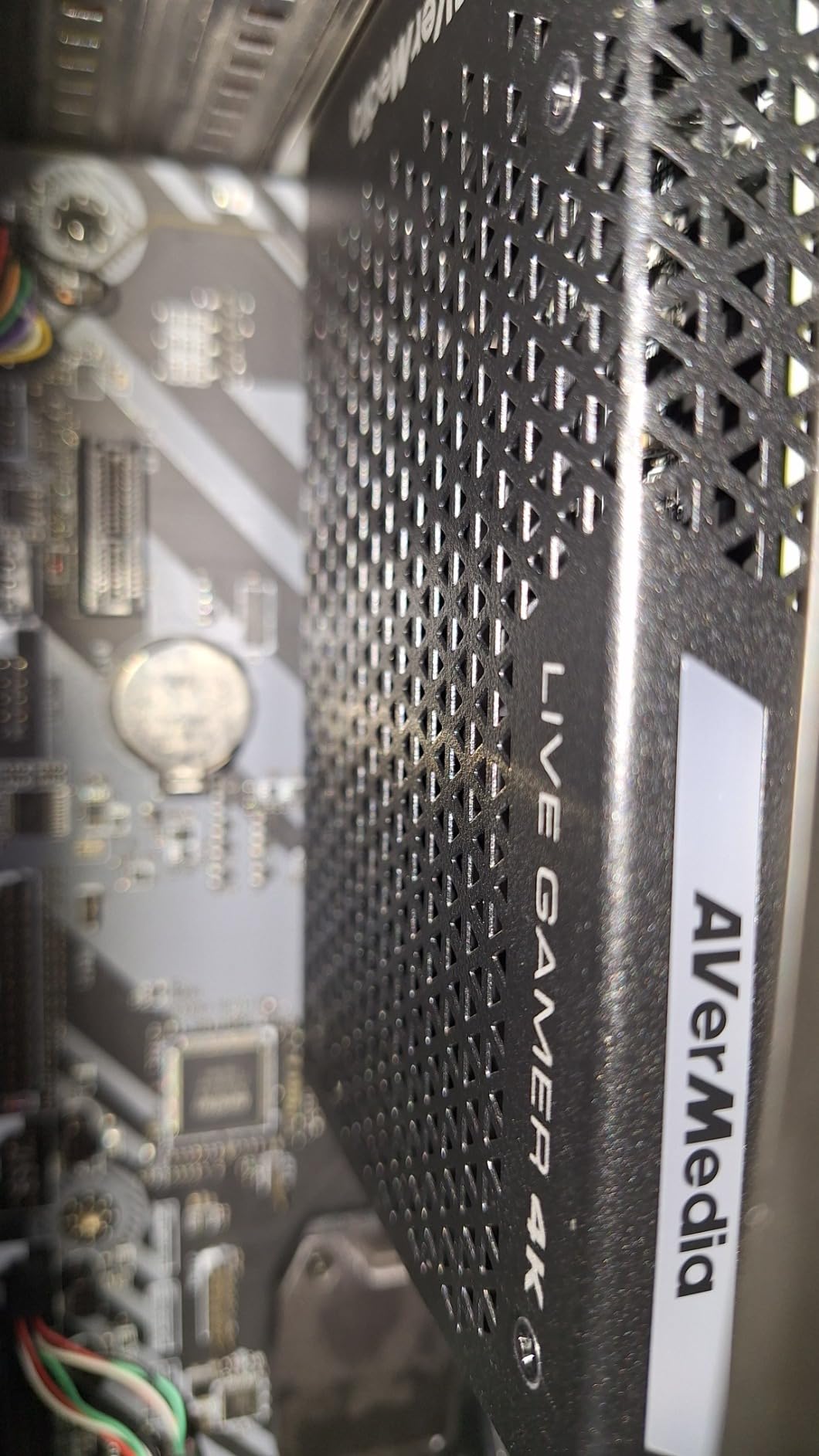
Know that the driver is a mandatory first step
This is the practical difference between this card and the plug-and-play models in this list. Budget ten minutes before your first stream, not during it. Download the current driver, install it before OBS opens the device, and confirm the card appears as a capture source.
Because audio depends on RECentral, decide now whether you will run that utility in the background. If you would rather avoid it, route audio through OBS’s desktop capture or a separate USB interface instead.
Who should skip the GC573
Skip it if you own an HDMI 2.1 console and want 4K120 passthrough, because this is an HDMI 2.0 card and the pipeline will not carry it. The Elgato 4K Pro is built for that source.
Skip it if bundled software quality is a dealbreaker for you. If you want a card that appears and works with no downloads, the VIXLW and MYPIN cards below behave that way, though they make more compromises elsewhere.
3. VIXLW 4K Internal Capture Card – Best Budget 4K60 Passthrough Pick
- Recognised by Windows without extra configuration in buyer reports
- Clean stable signal with no dropouts reported
- Works with OBS
- VLC and other common capture tools
- Attractive price for a 4K60 passthrough specification
- At least one buyer reported the driver did not install automatically
- Bundled software and documentation unclear for some units
- Capture ceiling listed as 1080p in the specifications despite 4K60 in the name
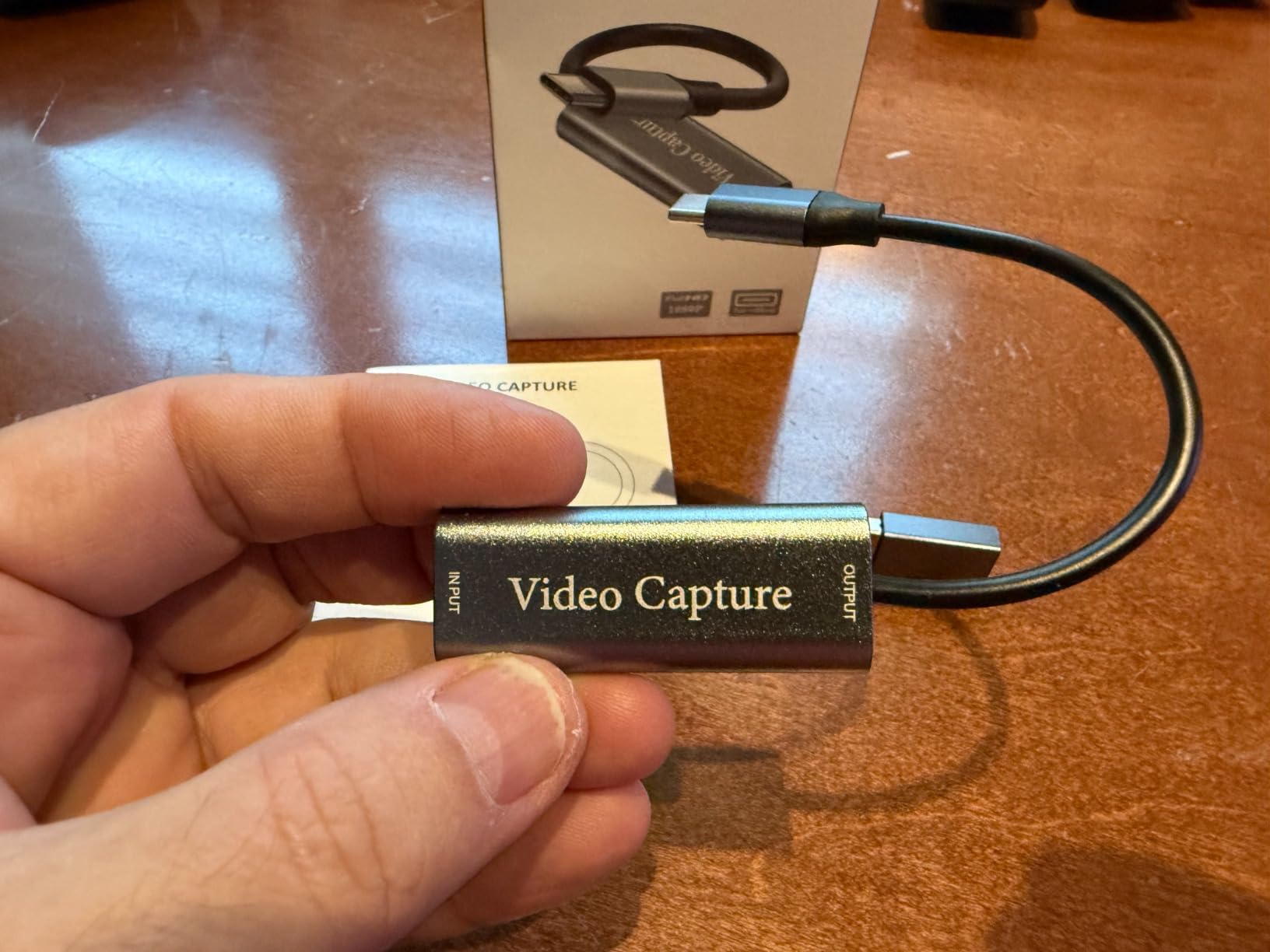
This is the card that shows up when you filter the category by review count rather than brand name. Over 600 reviews at a 4.3 average, it is the best-evidenced value card in the roundup, and the owner feedback is unusually consistent: people plug it in, Windows sees it, and the signal is clean.
The specification list claims 4K60 passthrough alongside 240fps recording at 1080p, which is the same shape as cards costing considerably more. Passthrough is the part users confirm, and the capture side is where you should temper expectations based on the listing details rather than the name.
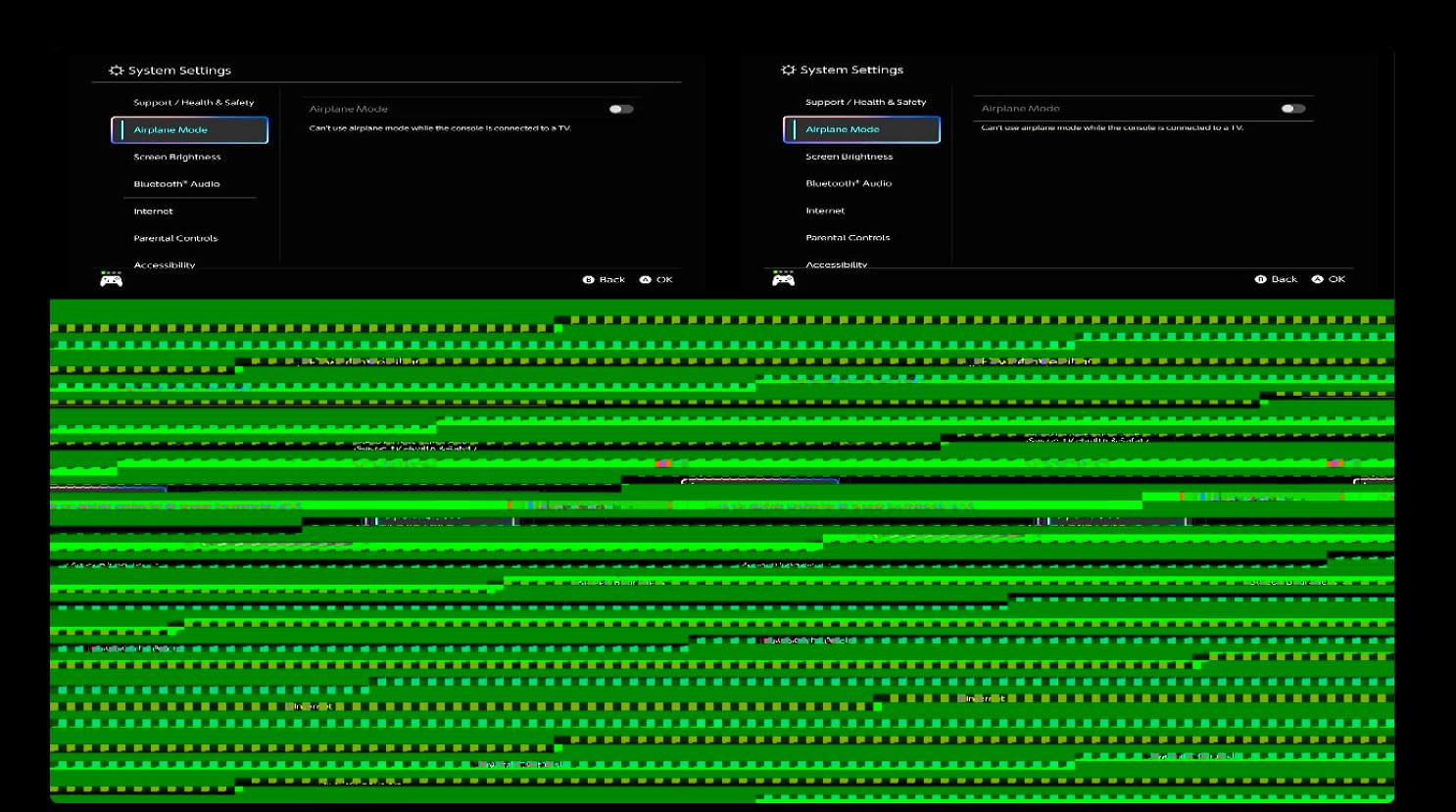
Software compatibility is broad. Owners report it working with OBS, VLC, Zoom, and Teams without special configuration, which makes it a safe pick if your workflow spans meetings and streams. It also ranks well inside its Amazon category, which suggests it is moving volume rather than sitting in a niche.
The complaints are minor and mostly about onboarding. Some buyers had to install the driver manually, and a few found the included software or documentation unclear. Neither is a blocker, but neither is the polished first-run experience the branded cards deliver.
Check what the card captures, not what it passes through
The 4K60 figure in the name refers to passthrough. If you want 4K60 recorded to disk, confirm the capture resolution in OBS before you commit to a workflow that depends on it. Setting a custom capture resolution of 3840×2160 at 60 and checking the preview is the fastest way to know.
For dual PC setups, run the source machine’s output into the HDMI input, the card’s HDMI output into the monitor, and the capture channel into OBS on the streaming PC. Nothing else changes between the two machines.
Who should skip the VIXLW card
Skip it if your source is a modern console and you care about variable refresh rate passthrough, since VRR handling is not part of the claimed specification. Skip it if you need HDR tone mapping or a documented audio input, both of which this class of card leaves unaddressed.
Skip it if warranty support matters to you. It advertises lifetime warranty support, but in practice documentation quality is the weak point, and a brand with a real support desk is worth something when a driver update goes sideways.
4. AVerMedia Live Gamer HD 2 GC570 – Best Value 1080p60 Internal Card
- Plug-and-play on modern Windows with uncompressed video output
- Cheap PCIe x1 option that supports up to four cards in one gaming PC
- Low-latency passthrough verified with current consoles
- RECentral 4 included for live editing and overlays
- Capture ceiling is 1080p60 with no 4K capability
- Windows 7 needs a manual driver install
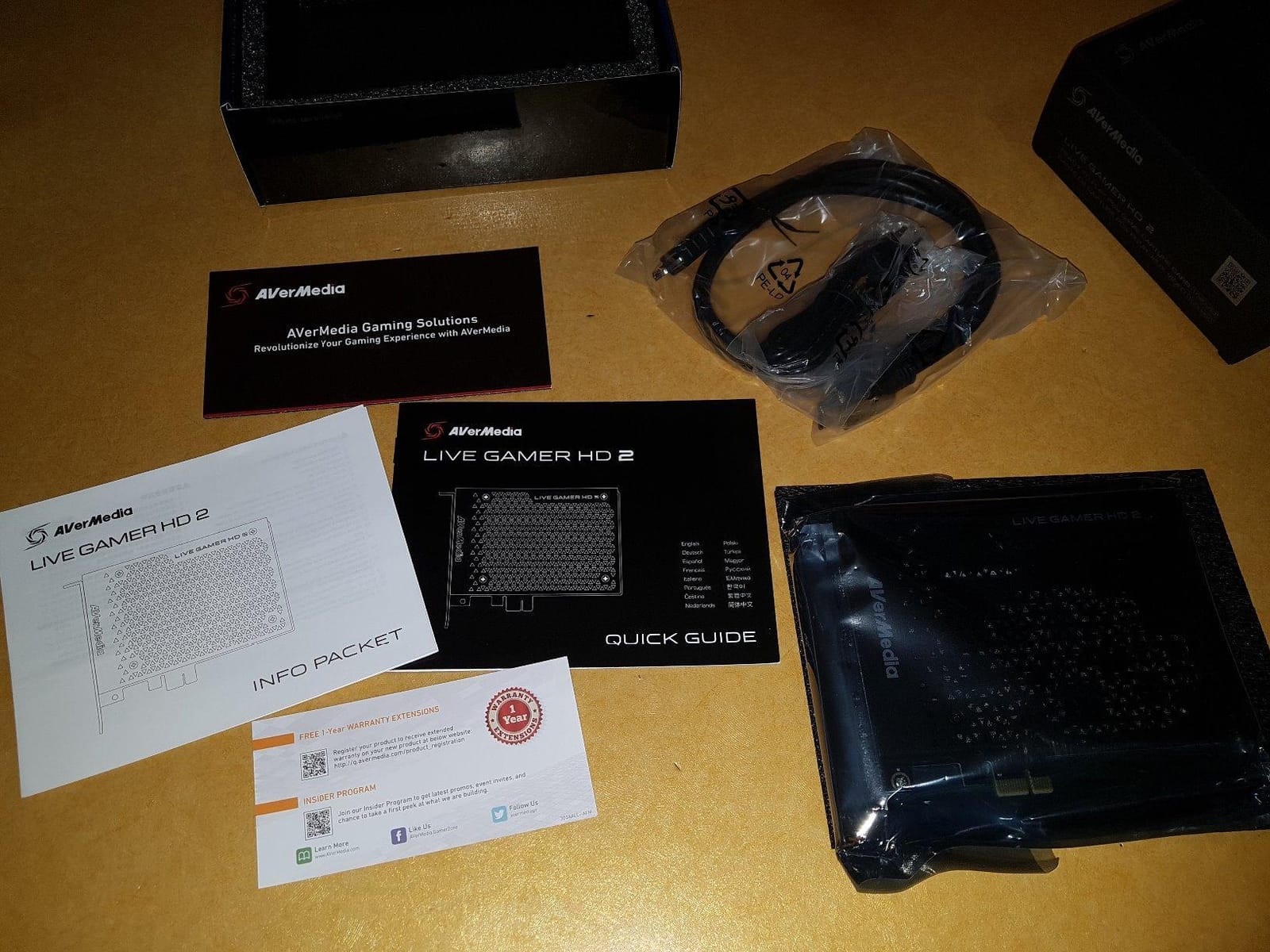
Most streamers do not need 4K, and this card is the one to buy if you are sure of that. The Live Gamer HD 2 captures uncompressed 1080p60 and passes through with low latency, which is the resolution most live platforms actually deliver.
Multi-card support is the feature nobody else in the budget tier offers. Up to four cards can run in a single gaming PC, which makes it the pick for a multi-angle rig or for anyone who wants a console channel and a camera channel on one streaming machine. At 4.3 stars across 548 reviews, the reliability record is solid.
It is a PCIe x1 card, which is a genuine advantage in a modern case. x1 slots are common below the GPU, where a taller card will not fit, and this one is short enough to slot in easily. That alone puts it ahead of several four-lane rivals in cramped builds.
The box includes a 3.5mm audio cable alongside the HDMI cable and RECentral 4, so you have a physical audio path for party chat rather than relying on HDMI audio alone. The one real limitation is resolution: there is no 4K capture at any setting.
Check the x1 slot and multi-card lane sharing
Before you plan a four-card build, confirm your motherboard can actually supply four x1 slots with a graphics card installed. Many boards have two or three x1 slots and share lanes with the primary GPU, which can drop the GPU’s link from x16 to x8 and cost you a few percent of performance.
Also check the physical stack. This card’s low profile is helpful, but a multi-card setup means multiple brackets, so case depth and slot spacing decide whether the plan works.
Who should skip the GC570
Skip it if you record to YouTube or archive gameplay and want a 4K master file. There is no path to 4K capture on this card, and a 1080p60 upscale from a 4K game looks soft on a 4K timeline.
Skip it if your plan is HDR capture or 240fps high frame rate work. Neither is supported.
5. AVerMedia Live Gamer Duo GC570D – Best Internal Card for Two Sources
- Two independent HDMI inputs in a single slot for game plus camera
- Onboard hardware processing for HDR to SDR tone mapping
- 4K to 1080p downscale and frame rate conversion
- Records both inputs simultaneously as uncompressed 1080p60
- Zero-lag passthrough up to 4K60 HDR or 240fps at 1080p
- Capture output is limited to 1080p60 per channel despite 4K passthrough
- Smaller review base than the category leaders at 178 reviews
Most cards take one input. This one takes two, and that is the entire reason to choose it. A game console or PC on input one, a DSLR or mirrorless on input two, both recorded at once, all in one PCIe slot. For a two-angle stream that is a cleaner and cheaper solution than two separate cards.
The onboard processing is the quiet differentiator. Tone mapping from HDR to SDR, downscaling from 4K to 1080p, and frame rate conversion all happen in hardware on the card, and none of it touches the passthrough path. Your monitor still gets the original 4K60 HDR picture while your stream gets a broadcast-safe 1080p60.
Read the capture ceiling carefully before you buy. Pass-through reaches 4K60 HDR and 240fps at 1080p, but the recorded output is 1080p60 per channel. Owners understand this and rate the card highly anyway, because a dual 1080p60 feed is still a rarity.
The box includes an HDMI 2.0 cable. With 178 reviews the feedback pool is smaller than the leaders, though the steady 4.4 average suggests a consistent experience rather than a lucky sample.
Check whether your second source is really worth a second channel
A second input only pays off if you have a real second source. A webcam, a capture card, or an action camera on a long HDMI run are all valid. If your second angle will be a phone on a stand, a small external webcam does the job for less.
Verify your streaming software handles two simultaneous video sources cleanly. OBS can, but scene and audio routing take deliberate setup rather than drag and drop.
Who should skip the Live Gamer Duo
Skip it if you need genuine 4K recording rather than 4K passthrough. The card is excellent at passing a 4K60 signal to your TV and recording 1080p60, which is a different job from a 4K master file.
Skip it if you need more than two angles. At that point a four-channel card is the cheaper route per input.
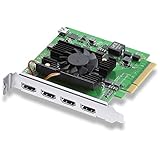
6. Blackmagic Design DeckLink Quad HDMI – Best for Live Production
Blackmagic Design DeckLink Quad HDMI PCIe Capture Card, Up to 4K60, 4 HDMI 2.0b inputs (BDLKDVQDHDMI4K)
- Four simultaneous HDMI inputs with all displays kept active at all times
- PCIe Gen3 x8 bandwidth avoids the bottlenecks of PCIe 2.0 x4 alternatives
- Rock solid in live production with one owner running three cameras routinely
- Strong compatibility with vMix
- OBS
- Wirecast and professional cameras
- Works in Mac Pro towers as well as PC workstations
- Driver and installation documentation is hard to find on the vendor site
- No strain relief on the HDMI ports so heavy cables can stress the connectors
This is a broadcast tool that happens to work for gaming. Four HDMI inputs run at once, all four keep their displays active, and the PCIe Gen3 x8 bus has enough headroom that reviewers specifically call out avoiding the bottlenecks they hit with older x4 cards.
Colour handling is the real differentiator. It supports 8, 10, and 12-bit RGB 4:4:4 up to 4Kp30 DCI, and 8 or 10-bit YUV 4:2:2 in every mode, plus Deep Color, HDR, and Rec. 601, 709, and 2020 spaces. Eight channels of 24-bit 48kHz audio per feed is a broadcast spec, not a streaming one.
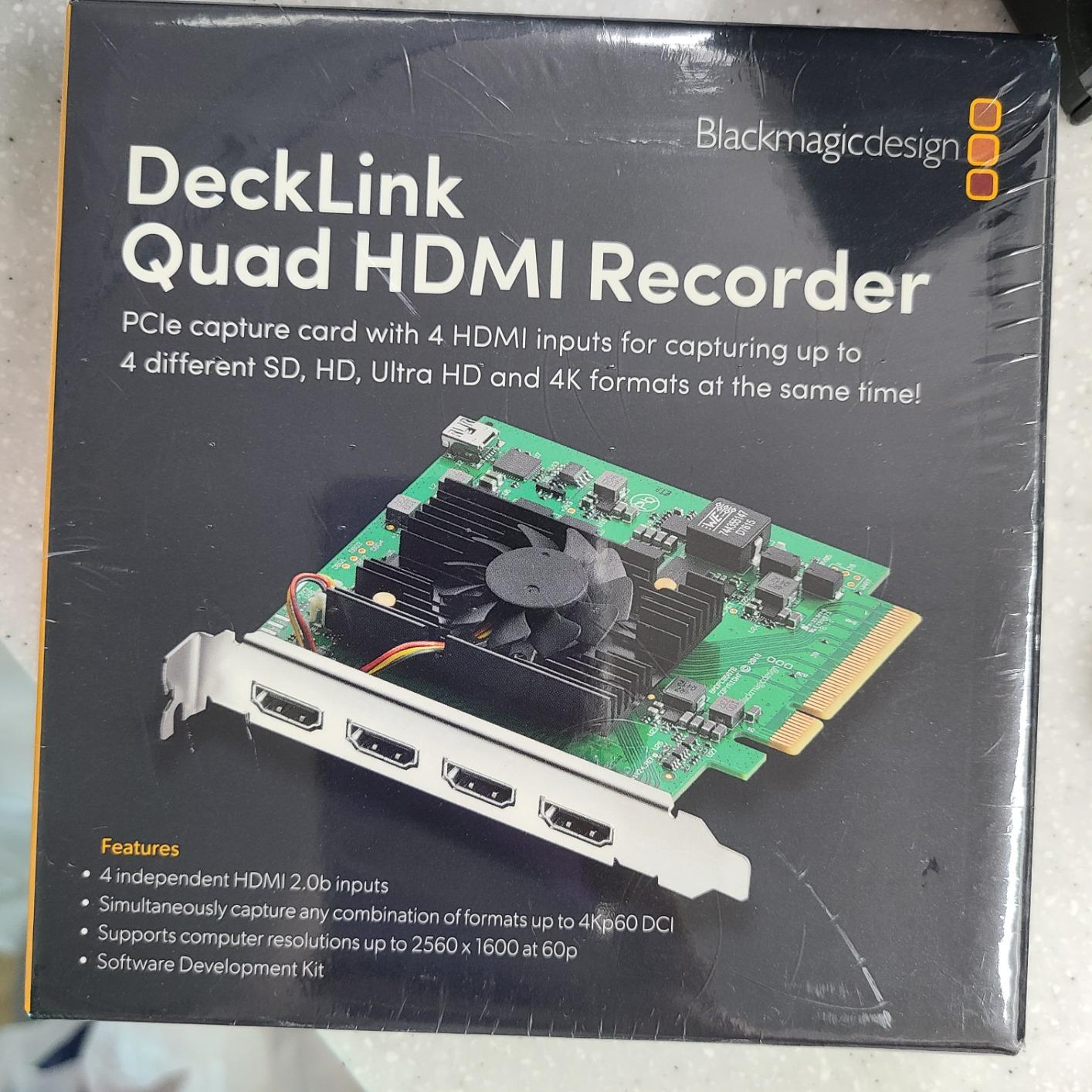
Owners running it in live production describe it as dependable in a way cheaper cards are not, and the compatibility list is broad: Media Express, Wirecast, vMix, and OBS. It also runs on Linux and in Mac Pro towers, which matters for studio work.
It is worth pairing with a capture-card-aware input switch if you are building a small studio, since a single slot feeding multiple machines keeps the desk manageable.
Check your slot width and find the driver first
PCIe Gen3 x8 means you need a real x8 slot, or a slot at least that wide. On most boards that is the slot below your GPU, and on a workstation board it may be taken. Confirm lane sharing in the motherboard manual, because a Gen3 x8 card in a shared slot can drop to a slower link.
Find the driver and documentation before the card arrives. Several buyers spent days locating them, and that delay is the single most common complaint about an otherwise well-regarded product.
Who should skip the DeckLink Quad
Skip it for gaming-only use. A single 1080p60 source is the job, and a single-input card does that for a fraction of the spend while leaving money for a better streaming PC.
Skip it if you are recording copy-protected content. The HDMI inputs cannot capture from protected sources, which rules out some streaming apps even with HDCP disabled.
7. ACASIS 4K HDMI PCIe x4 – Best Multi-Cam Value
- Four independent HDMI channels working simultaneously after a single driver install
- Uncompressed low-latency 1080p60 capture with high image quality
- Owners report roughly half the cost of comparable multi-input cards
- Widely used for multi-camera
- PTZ and chroma-key studio work
- Built-in fan keeps thermals in check during long sessions
- Despite the 4K name
- capture resolution is 1080p60
- Audio streams were not accessible when tested on one Linux setup
Four simultaneous 1080p60 channels on one PCIe card, at roughly half the cost of comparable multi-input hardware. That is the pitch, and owners in broadcasting, teaching, and mocap work confirm it delivers once the driver is installed.
The built-in turbo fan is unusual at this tier and matters more than it sounds. Four decode chips pushing uncompressed video generate real heat, and in an airflow-restricted case that is where budget cards throttle or fail. Active cooling extends the service life of the card.
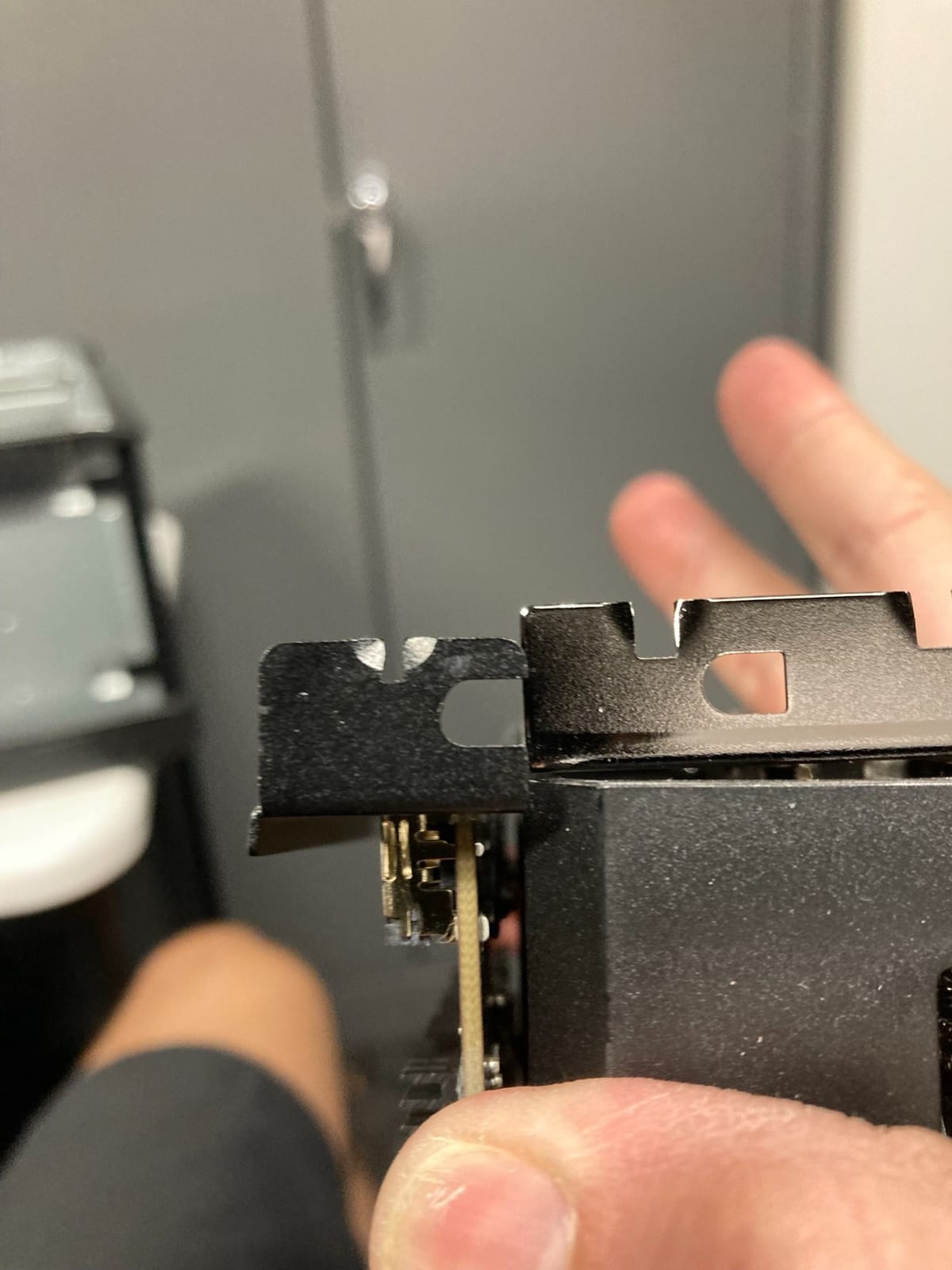
It fits PCIe x4, x8, or x16 slots and supports Windows plus Linux, so it works in older broadcast hardware where a modern x8 card would not. The 3.94 inch square footprint is also friendlier in a workstation chassis than a full-height quad bracket.
No signed Windows drivers are shipped with it, so the card is not a true plug-and-play install out of the box. Plan the download before your first session rather than during it.
Check the driver download and the 4K naming
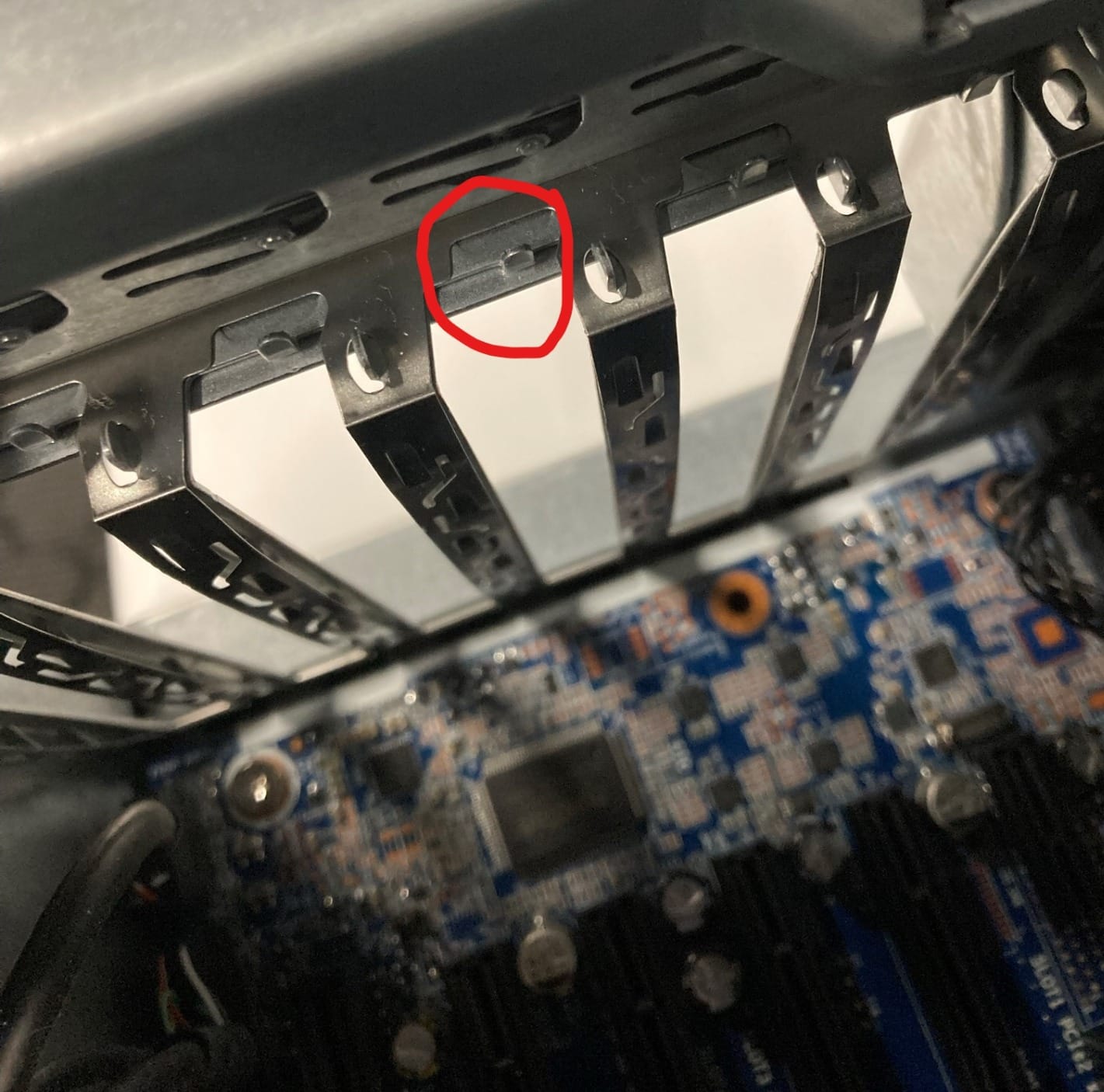
No signed Windows drivers are included. You download them from the vendor site, and because the site hosts several models, pick the correct card or you will install the wrong one. Budget fifteen minutes for this before your first session.
The 4K in the name describes input acceptance, not recorded output. Capture is 1080p60 uncompressed. If you need genuine 4K recording from four sources, look at the professional quad cards instead.
Who should skip the ACASIS card
Skip it if you need audio on Linux. Owners testing on a recent Ubuntu release found video working while audio streams were inaccessible, which breaks any workflow that depends on a Linux streaming box.
Skip it if your case has tight bracket clearance. The mounting gap is slightly narrow and some workstation enclosures need modification to accept it.
8. MYPIN Game Capture Card – Cheapest Way to Test PCIe Capture
- Zero-delay HDMI loop-out for lag-free streaming
- PCIe transfer up to 500MB/s is faster than USB 3.0
- True plug-and-play with no driver installation
- Low-profile bracket included and fits PCIe x1 slots
- Owners report it beats similarly priced USB capture cards
- Capture is 4K30 rather than 4K60
- Two reviews describe the card failing within weeks to a month
- Metal shell can foul an adjacent GPU fan and I/O screws are not included
This is the card to buy if your real question is whether PCIe capture suits your rig at all. It installs with no driver, shows up immediately, and runs a 500MB/s transfer rate over PCIe, which is the throughput argument for internal capture in a single device.
The zero-delay HDMI loop-out is the practical feature. No added lag between your source and your monitor, which makes it usable for real-time play rather than just recording.
Compatibility is broad for a budget card: OBS, VLC, vMix, Wirecast, Zoom, and PotPlayer, across Windows, Linux, and Mac. The low-profile bracket is included, which is unusual in this price class.
Reliability is the open question. A couple of owners report capture dropping out after a few weeks with passthrough still working, which is a failure mode you will not discover until a stream is already running.
Check capture frame rate and the bracket clearance
Capture is 4K at 30fps, not 60. For a YouTube channel or an archive of console gameplay, 4K30 is a perfectly reasonable master file, and it is far better than an upscaled 1080p recording.
Check the metal shell against your GPU. Owners report it can foul an adjacent GPU fan, and the I/O panel screws are not included. Both are minor, and the second one is a five-minute fix if your case does not supply spares.
Who should skip the MYPIN card
Skip it if you cannot accept a reliability risk. Two reviews describe the card failing within weeks to a month, with passthrough still working but capture dropping out, which is exactly the failure mode that ruins a recorded stream.
Skip it if you need VRR passthrough, HDR tone mapping, or documented audio routing. None are part of the specification.
9. DigitPro PCIe Video Capture Card – Best for Tape and Legacy Video
- Extremely low-cost way to digitize VHS
- MiniDV
- Betacam
- S-VHS
- 8mm and Hi-8 tapes
- Installs with no drivers and Linux Mint recognised it immediately
- Avoids USB cable clutter since connections sit at the rear of the PC
- Works with OBS out of the box on Windows 11 and Linux
- Composite video is soft with heavy motion blur and no proper deinterlacing
- Output is oversaturated and overbright and needs manual correction
- Half-height bracket is not included
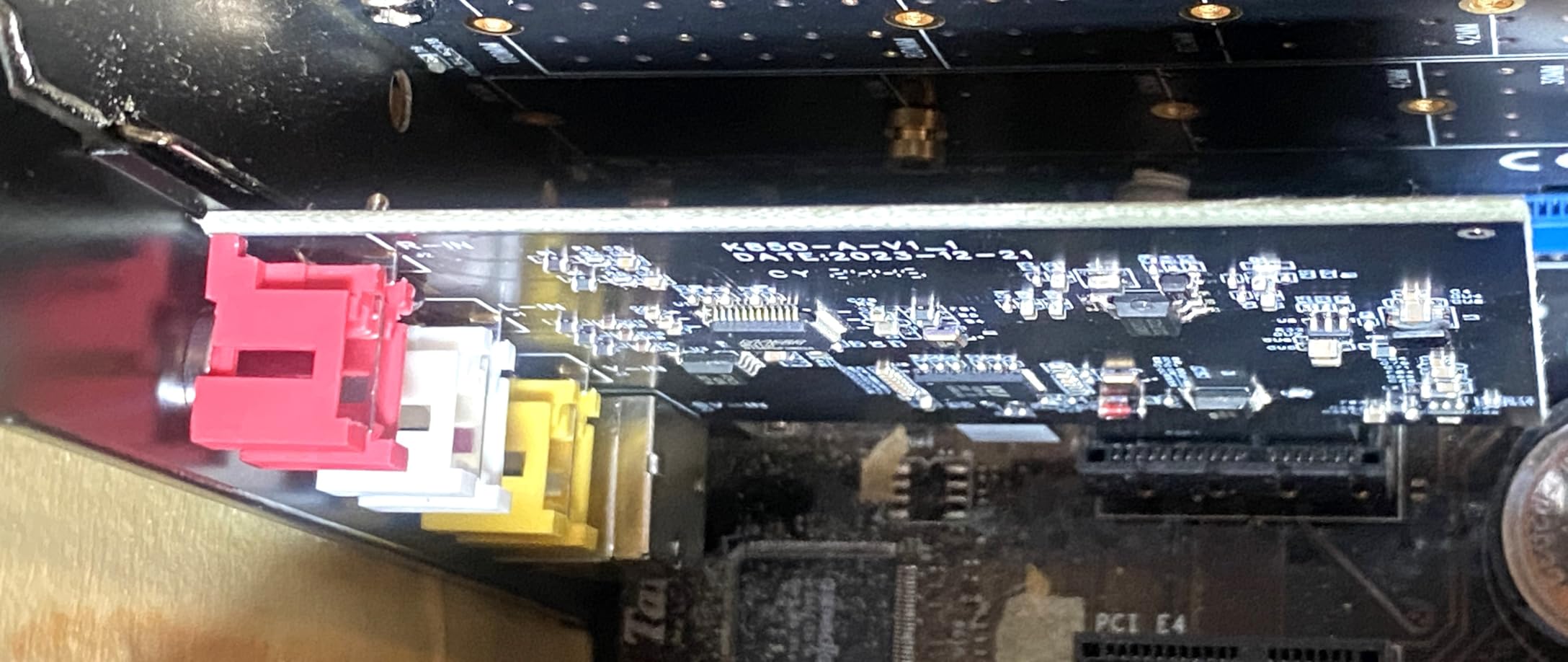
We are including this card because it is a PCIe capture card and an honest roundup should say what it is for. This is a tape digitizer, not a game capture device. It takes CVBS composite and S-video, auto-detects NTSC or PAL, and outputs up to 1080p30 as MJPEG or YUV422.
For that job it is excellent value. Owners digitizing VHS, MiniDV, Betacam, 8mm, and Hi-8 collections report the zero-driver install working immediately, including on Linux, and the rear-panel connection removes a stack of USB cables from the desk.
At 4.1 stars across 50 reviews it is the lowest-rated card here, and the rating is explained by the format rather than a defect. Composite video is soft, motion blurs, and there is no proper deinterlacing.
Software support is thin compared with the HDMI cards in this roundup, so budget extra time for setup or keep guvcview as a fallback on Linux.
Check your source outputs before buying
Confirm your tape deck or camera can output composite or S-video. Most modern devices output HDMI only, and this card has no HDMI input, so it simply will not work with them.
Plan for colour correction in software. Owners describe oversaturated, overbright output that needs manual correction, which is normal for analog capture and adds time to each transfer.
Who should skip the DigitPro card
Skip it for game streaming. There is no HDMI input, so no console, PC, or modern camera is compatible.
Skip it if you need a half-height bracket for a small form factor case, because the bracket is not included and must be sourced separately.
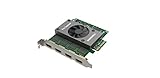
10. Magewell Pro Capture Quad HDMI 11100 – Best Studio Grade Multi-Input Card
- Extremely stable with one owner running two cards seven hours a day for two years
- Multiple cards work in one system using the rotary ID switch
- Handles long HDMI runs from GoPros and DSLRs better than competing cards
- Chroma-key and virtual studio results hold up after three years
- Later driver revisions made the card noticeably quieter
- Very high price
- with reviewers saying it would be a better deal in the mid range
- The 20mm cooling fan is loud on some hardware revisions with no PWM control
- Limited audio options in vMix workflows
The top of the internal card market, and the choice when uptime matters more than cost. One owner reports running two of these seven hours a day, five days a week, for two years, and other reviewers describe chroma-key and virtual studio results that still look right after three years of use. That longevity record is the whole argument.
Four independent HDMI inputs with embedded audio, up to 2048×2160 input, and up to 144fps depending on system bandwidth. The on-board FPGA does cropping, scaling, de-interlacing, aspect ratio and colour conversion, and on-screen display composition in hardware, which reduces the load on your host CPU. It runs on Windows, Linux, and macOS.
Multiple cards can share one system using the rotary ID switch on the board, which is how studios scale beyond four inputs.
There are no printed instructions in the box, so download the manual and driver before the card arrives rather than on install day.
Check the cooling fan and the documentation gap
Some hardware revisions have a loud 20mm fan with no PWM control, so in a quiet studio it can be audible. Later driver revisions made the card noticeably quieter, but confirm which revision you are getting.
Reviewers also flag limited audio options inside vMix workflows, which matters if your production mix depends on broadcast audio routing rather than game audio alone.
Who should skip the Magewell 11100
Skip it for a single gaming PC. Even several prosumer cards cost a fraction of this, and a single 1080p60 source does not need a four-channel studio card.
Skip it if your work is live chat. Reviewers report limited audio options in vMix workflows, which is a real constraint in a production environment that mixes broadcast audio.
PCIe Slot Checklist: Will the Card Even Fit?
Most returns in this category are compatibility returns, not dislike returns. Run through this list before you order.
1. Slot width. Check the lanes the card needs, x1 or x4, against what your motherboard offers. A card built for x4 will physically fit an x16 slot but may not work in a shorter slot. The AVerMedia Live Gamer HD 2 needs only x1, which is why it fits in places a taller card cannot.
2. Lane sharing. This is the one that surprises people. Many boards split lanes between the GPU slot and the expansion slots, so installing a capture card can reduce your graphics card from x16 to x8. The card still works, but your GPU loses bandwidth. Check the motherboard manual for the lane sharing table before you fit anything.
3. Physical clearance. Measure the gap between your GPU and the drive cage or front fans. A full-height card under a triple-slot GPU may have unreachable HDMI ports. A PCIe riser cable solves this in most cases, and performance is unaffected, but it is a cheap part and a 20-minute job.
4. Slot colour and spacing. On boards with a metal shroud, the shroud may cover the short x1 slots entirely. The ACASIS bracket gap is also slightly narrow, which needs modification in some workstation cases.
5. Case type. Laptops, small form factor PCs, and most mini-ITX builds have no usable expansion slot. This is the moment an internal card stops being an option and an external one becomes the answer.
6. Above 4G decoding and IOMMU. Large modern GPUs plus multi-lane cards can need these BIOS options enabled. Most current motherboards handle it automatically, but if you hit a boot loop or a card that will not enumerate, this is the first BIOS setting to check.
While the machine is apart, our mechanical keyboard buying guide is a more sensible use of the downtime than guessing at a capture card.
Capture Resolution vs Passthrough vs What You Actually Stream
This is the single biggest source of disappointment in the category, and it has a simple cause: manufacturers quote the passthrough figure in the product name.
Read three numbers for every card. The capture resolution is what gets recorded. The passthrough resolution is what reaches your monitor untouched. The stream resolution is what your platform delivers, which for most live platforms is 1080p60 regardless.
A card can pass 4K60 to your TV and record 1080p60 for your stream, and several in this roundup do exactly that, which is a perfectly good design. But if you bought it to record a 4K master file and it only captures 1080p, that is a different product from the one you wanted. Cards that genuinely capture 4K60 HDR10 in this list are the Elgato 4K Pro and the AVerMedia Live Gamer 4K. Cards that pass 4K60 while capturing 1080p60 include the Live Gamer Duo, the ACASIS, and the VIXLW unit.
Chroma subsampling matters too. 4:2:0 halves the horizontal colour detail of thin text, which looks fine in motion and soft on a paused frame. 4:2:2 is a common compromise on 4K capture. 4:4:4 preserves every pixel, and the Blackmagic DeckLink Quad offers it up to 4Kp30 DCI for archiving work.
HDR and VRR are passthrough features. HDR passthrough means your HDR signal reaches your monitor unchanged while you record SDR for the stream. VRR passthrough means variable refresh rate keeps working through the card, so a compatible monitor is not forced into a fixed rate. The Elgato 4K Pro is the pick here for VRR, and the AVerMedia Live Gamer Duo tone maps HDR to SDR on the card itself.
Set a custom resolution in OBS. Leave OBS on device default and you will get black screens, dropped frames, or a resolution your source is not sending. Set the capture resolution to match the source exactly.
Audio Routing and Party Chat Capture on Internal Cards
Video is the easy half. Party chat and microphone audio are where internal cards differ most, and several in this list have no analog audio jacks at all.
When a card has 3.5mm jacks, the arrangement matters. A line-in jack takes the second PC’s headphone or line output, and an out jack can feed your monitoring setup. The AVerMedia Live Gamer HD 2 includes a 3.5mm audio cable for exactly this, and it is the cheapest way to get game audio plus party chat onto separate channels.
When a card has no jacks, you have three options. Use the HDMI audio from the source, which the AVerMedia Live Gamer 4K does through RECentral running in the background. Capture desktop audio in OBS, which grabs whatever the streaming PC plays including Discord, at the cost of capturing other system sounds. Or add a dedicated USB audio interface, which is the clean solution and costs less than the card you just bought.
For controller or party chat specifically, forum consensus on r/obs points to a dedicated chat link device rather than the capture card, because the card’s audio path is designed for game audio, not voice.
Set OBS to a 48kHz sample rate. Audio drift over long sessions almost always traces back to a mismatch between a 44.1kHz device and a 48kHz timeline, and forcing everything to 48kHz fixes it.
Elgato vs AVerMedia: Which Internal Brand Should You Buy?
These are the two names the buying decision usually comes down to, and they answer to different priorities.
Bundled software. AVerMedia bundles RECentral, which owners consistently describe as dated and hard to navigate, and on the Live Gamer 4K the audio routing depends on it running. Elgato’s capture utility is leaner, exposes passthrough and capture resolution as separate controls, and is the one people keep installed. Elgato wins here, and it matters because vendor software is a purchase criterion, not an afterthought.
Passthrough ceiling. The Elgato 4K Pro carries HDMI 2.1 with 8K60 passthrough and VRR support. AVerMedia’s current flagship is HDMI 2.0. If your source console is running 4K120 modes, Elgato is the only option in this roundup that carries it.
Audio I/O. AVerMedia has the advantage. The Live Gamer HD 2 ships with a 3.5mm audio cable for party chat, and the Live Gamer Duo adds a second independent input. Elgato’s internal cards lean on HDMI and desktop audio.
Review depth. AVerMedia’s GC573 has more than a thousand reviews, which is the deepest owner record in the category. Elgato’s 397 reviews on the 4K Pro carry the highest average rating at 4.5.
Our per-scenario advice: buy AVerMedia when you need a second input, physical audio jacks, or a multi-card 1080p60 rig. Buy Elgato when your source is a modern console at high refresh, you want VRR passthrough, or you care more about software quality than analog audio. If you want a second opinion before committing, r/streaming consistently recommends the Elgato PCIe line as the default, with AVerMedia named as the credible alternative for internal users.
Installing an Internal Capture Card and Setting Up OBS
Plan for about an hour, and build the first stream after it rather than during it.
1. Confirm your slot. Check the motherboard manual for lane width and lane sharing with the GPU before you open the case.
2. Power down properly. Switch the PSU off, unplug it, and hold the power button for ten seconds to drain the capacitors.
3. Remove the case panel and locate the slot you verified. Note which slot covers you will need to remove for clearance.
4. Fit the card. Remove the slot cover bracket, align the card, and press until the latch clicks. Secure the bracket screw at the rear.
5. Install drivers if required. UVC cards appear automatically. The AVerMedia Live Gamer 4K and the ACASIS card both need a driver downloaded from the vendor site first, and the ACASIS site hosts several models, so pick the right one.
6. Connect HDMI in. Run the source into the card’s HDMI input port. Keep cables under 2m where the vendor advises it.
7. Connect HDMI out. Run the card’s output to your monitor. This is the passthrough path, and it should be wired regardless of what OBS is doing.
8. Set your monitor refresh rate on the passthrough display, then confirm the source device is outputting the same rate. A mismatch here is a common cause of a console sending 1080p30 unexpectedly.
9. Configure OBS. Add a Video Capture Device source, choose the card, and set the resolution manually to 1920×1080 at 60 rather than device default. Set the sample rate to 48000Hz. Under Output, match the output resolution to your streaming platform.
10. Test for a ten-minute local recording before you go live. Watch the frame rate in OBS stats and confirm audio is present and in sync.
Troubleshooting: Black Screen, Audio Desync and Card Not Detected
Black screen in OBS. Four causes cover most cases. HDCP is still enabled on a PlayStation or Xbox, and capture of protected content is blocked regardless of card. OBS is set to device default rather than a custom resolution that matches your source. The Windows camera privacy toggle is blocking the capture device. Or the EDID has drifted and the source has dropped to a fallback mode. Work down that list in order.
Card not detected. Check the BIOS for above 4G decoding and IOMMU if you cannot see it in device manager. Reseat the card, confirm the lane sharing situation in the motherboard manual, and try a different slot. On some motherboards the card only enumerates in a slot wider than x1, so a physical fit does not guarantee detection.
Audio desync over long sessions. Almost always a sample rate mismatch. Set every device and the OBS audio timeline to 48000Hz. If drift persists, the card’s clock is the issue, and a more expensive card with a proper hardware clock is the fix.
Dropped frames. Check the OBS encoding log first, since dropped encoding frames are a software limit rather than a card fault. If the log is clean and the card drops frames instead, bandwidth is the problem, and a multi-lane card or a lower capture resolution fixes it.
VR streaming. This is the caveat most roundups skip. Internal capture cards generally do not support VR passthrough, and streamers on r/streaming and r/Twitch report it breaking with nearly all of them. If your content is VR, use a direct connection to the headset instead of a capture card.
Thermals in a closed case. Cheaper PCIe cards throttle in airflow-restricted cases. A card with active cooling, such as the ACASIS, handles long sessions better than a passively cooled board in the same chassis.
Frequently Asked Questions
Are internal capture cards better?
Internal PCIe capture cards are better for latency, bandwidth, and stability because video crosses a direct bus and typically adds under 30ms, where a USB 3.0 dongle commonly adds 60 to 80ms. External USB cards are better for portability, laptop use, and cost. If you own a desktop with a free PCIe slot and care about high bitrates or a permanent dual-PC install, internal wins.
What is the best PCIe capture card for gaming?
The Elgato 4K Pro is the best PCIe capture card for most gaming PCs. It captures 4K60 HDR10, passes through up to 8K60 over HDMI 2.1, supports 1080p240 recording, and handles VRR passthrough. It holds the highest average rating in our roundup at 4.5 stars from 397 reviews.
Which capture card is best for low latency?
An internal PCIe card is the low-latency answer. PCIe capture typically adds under 30ms, Thunderbolt around 50ms, USB 3.1 and 3.2 under 50ms, USB 3.0 roughly 60 to 80ms, and USB 2.0 more than 200ms. Within PCIe cards, look for a zero-delay or low-latency passthrough path and VRR support to keep tearing out of the picture.
Do I need a capture card if I play on PC?
Usually not, if you game and stream on one PC with a modern GPU, because NVENC and AMF already offload encoding to dedicated hardware. You do need one for a dual-PC setup, for capturing from a console, for a high-bitrate master recording, or if you want to offload encoder load from your gaming rig.
Why does my internal capture card show a black screen in OBS?
The four usual causes are HDCP still enabled on a PlayStation or Xbox, OBS set to device default instead of a custom resolution matching your source, the Windows camera privacy toggle blocking the device, or an EDID mismatch that drops the source to a fallback mode. Work through those in order before suspecting the card.
Can you use a capture card in VR?
Generally no. Internal capture cards do not support VR passthrough, and streamers report it breaking with nearly all of them, because the card cannot relay a headset signal correctly. If your content is VR, connect the headset directly to your streaming or gaming PC rather than routing it through a capture card.
The Best Internal Capture Card for Your Gaming PC
For most people building a streaming rig in 2026, the Elgato 4K Pro is the pick. It is the only card in this roundup that combines true 4K60 HDR10 capture, 8K60 passthrough over HDMI 2.1, 1080p240 recording, and VRR passthrough, and it holds the highest average rating we found. The AVerMedia Live Gamer 4K is the runner-up choice, with the deepest review history in the category and the same 4K60 HDR10 capture ceiling, at the cost of a mandatory driver download and dated software.
If your budget is tighter, the AVerMedia Live Gamer HD 2 handles uncompressed 1080p60 with multi-card support and physical audio jacks, and the VIXLW card is the cheapest route to 4K60 passthrough with a broad software list. The MYPIN card answers a narrower question, which is whether PCIe capture suits your machine at all, and the AVerMedia Live Gamer Duo, ACASIS, Blackmagic DeckLink Quad, and Magewell 11100 cover everything above a single input.
Check your free PCIe slot and its lane sharing before you order, set a custom capture resolution in OBS rather than device default, and force every audio device to 48kHz. Those three habits prevent most of the problems people report with the best internal capture cards for gaming PCs.
Whatever you choose, make sure the machine is ready for it. Our best gaming PCs for 4K guide covers the builds we would pair with a 4K60 capture card.